A real product walkthrough · fictional shipment
Missing PO. Missing PRO. BOL blocked.
See how DockReady turns a missing-reference check into a visible next step for the shipping desk, then inspect the actual PDF it produced.
This example was performed in the public demo on September 26, 2026. Companies, shipment details and references are sample data. It is a product demonstration, not a customer case study.
1. Open the held shipment.
In the demo, shipment SHIP-10245 had an empty customer PO and PRO number. Its clearance status showed HOLD ×2. The detail panel identified both missing fields, and Generate BOL was disabled.
2. Resolve the configured requirements.
Using Edit fields, we entered DEMO-PO-10245 for the customer PO and DEMO-PRO-10245 for the PRO, then saved. The shipment changed to CLEARED and the BOL button became available.
These are deliberately fictional values. In your workspace, use the actual references required by your customer and carrier at that stage of the process.
3. Inspect the output.
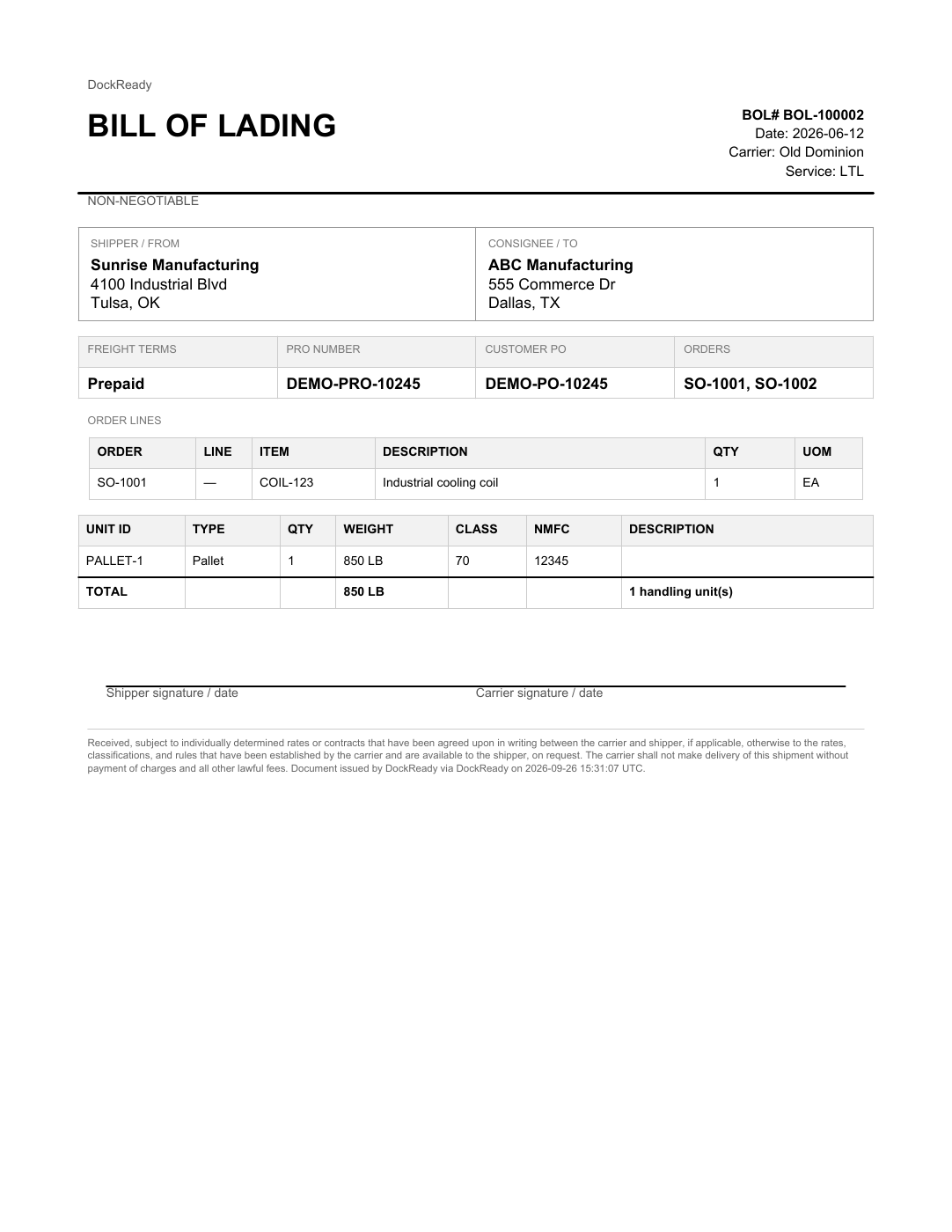
Selecting Generate BOL created BOL-100002. The PDF contains the two references, the shipper and consignee, order lines, and the 850 lb handling unit from the sample shipment.
What this demonstrates
DockReady evaluates the fields your rules require and blocks document issuance when a blocking requirement is missing. It does not independently verify that a supplied reference is correct. In this example, a missing contact phone remained guidance and did not prevent issuance.
Repeat it with the sample queue.
- Open Shipments and select a held shipment.
- Read the blocking requirements, then use Edit fields to enter fictional references.
- Save and review the new readiness result.
- Generate the BOL when its blocking requirements are resolved, then inspect the PDF.
The shared demo resets nightly, and other visitors may change it. Exact shipment state and document numbers can differ. Use only sample data there.
See whether your CSV export fits.
Open Import in the sample demo to download the template. Each row represents one shipment. Uploading a file first shows a preview; shipments are saved only after you select Import. Use fictional data in the shared demo.
| Your export | DockReady columns |
|---|---|
| Shipment and order | shipment_id, ship_date, sales_order, customer_po |
| Carrier references | carrier, service_level, freight_terms, pro_number |
| Origin and destination | ship_from_name, ship_from_address1, ship_from_city, ship_from_state, ship_from_postal; use ship_to_ for the destination equivalents. |
| Pallets and weight | pallet_count, weight, freight_class, nmfc |
Use dates such as 2026-09-26, a positive whole number of pallets, and total shipment weight in pounds. The importer divides that total equally across the pallets. Headers are matched without regard to capitalization; an admin can map different header names in the workspace.
Rows with the same shipment ID are not merged into order lines. If your export has one row per item, multiple package types, or different weights per pallet, reshape it or confirm the required connector setup before subscribing. Review addresses and freight details on the generated PDF before using it.
For a team checking these fields every day
Start your own workspace from a CSV export. Starter is $199/month for up to 100 BOLs/month. Review the workflow in the demo before choosing a paid plan.
Still working through your process? Use the shipping-paperwork checklist. If you only need a document, try the free BOL generator.